
Silk Mobile
Table of Contents (Homepage)
- Overview
- Setting Up
- Getting Started
- How To
- Connecting Devices And Emulators
- Preparing Applications For Testing
- Managing Applications
- Recording Tests
- Working With Test Commands
- Adding Commands To Your Scripts
- Object Commands
- Click
- ClickCoordinate
- ClickIn
- ClickOffset
- Drag
- ElementGetProperty
- ElementGetTableRowsCount
- ElementListPick
- ElementListSelect
- ElementListVisible
- ElementScrollToTableRow
- ElementSendText
- ElementSetProperty
- ElementSwipe
- ElementSwipeWhileNotFound
- GetAllValues
- GetElementCount
- GetElementCountIn
- GetTextIn
- IsElementBlank
- IsElementFound
- IsFoundIn
- LongClick
- RunNativeAPICall
- SendWhileNotFound
- VerifyElementFound
- VerifyElementNotFound
- VerifyIn
- WaitForElement
- WaitForElementToVanish
- GetCoordinateColor
- DragDrop
- Application Commands
- Device Commands
- Web (Hybrid) Specific Commands
- Utilities Commands
- Monitoring Commands
- Configuration Commands
- ExtractLanguageFiles
- SetDefaultClickDownTime
- SetDefaultTimeOut
- SetDefaultWebView
- SetDragStartDelay
- SetInKeyDelay
- SetKeyToKeyDelay
- SetLanguage
- SetLanguagePropertiesFile
- SetShowImageInReport
- SetShowPassImageInReport
- SetShowReport
- SetSpeed
- SetThrowExceptionOnFail
- SetWebAutoScroll
- StartStepsGroup
- StopStepsGroup
- TextFilter
- Miscellaneous Commands
- Controlling Element Identification Rules
- Editing Test Objects
- Executing Test Scripts
- Report Of Executed Test
- Working From Code Environment
- Continuous Integration
- Layout Verification Tests
- Use Device Vitals Monitors
- Troubleshooting
- Terminology
Creating Your First Test On Android Device
In this session we will create a test script for an Android device using Silk Mobile's automated recording capability. To illustrate this, we use a sample instrumented application named "eri-Bank" which can be downloaded from this Link.
Recording a Test Script
To start recording a script for a mobile device:
Step 1: Perform the following prerequisites:
-
Connect your mobile device via a USB cable to your computer. (For detailed instructions on establishing device connectivity, refer to "Connect Device" )
-
Verify that the application is instrumented and installed on the mobile device. (Refer to "Native Application Instrumentation for Android").
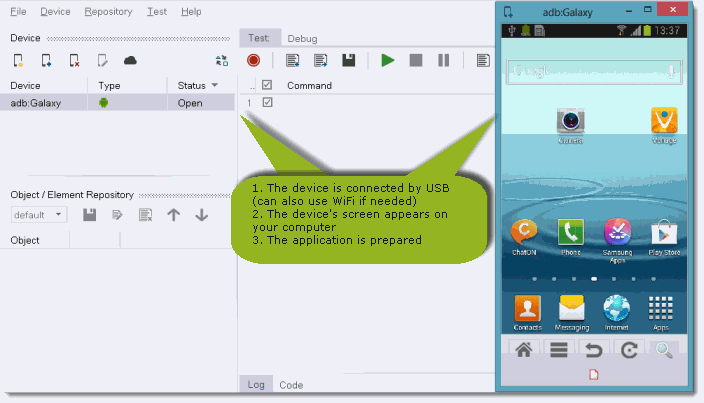
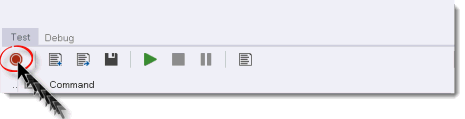
Step 2: In the Silk Mobile window, go to the Test tab and click the Record button.
Step 3: In the dialog box now displayed, choose the device to be recorded from and choose the name of the tested application (for Native Recording)
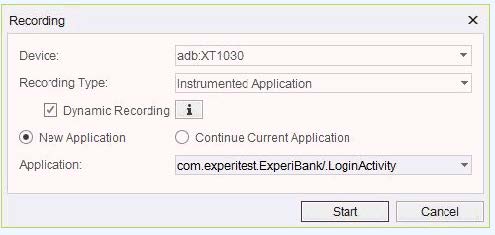
Note: Test scripts can be recorded in a number of modes. Generally, we recommend using Dynamic Recording which is activated by selecting this check box in the Recording dialog box. However, a number of other Recording options are available which can be utilized, based on your needs, when recording a test script .
Step 4: Click Start . As Silk Mobile prepares the Android application for testing, a progress bar is displayed.
The application will be opened on the device and you can now begin to record steps of the scenario you want to automate. As you do so, be sure to only perform these steps in the reflection, and not on the device.
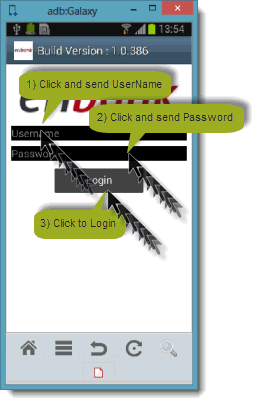
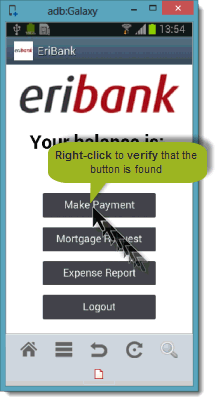
Step 5: In the current example scenario, we shall record a script using the "eriBank" application which logs into the user's bank account and sequentially performs a number of actions. As Silk Mobile is now in the recording mode, begin to slowly and deliberately perform the following operations in the reflection of the application displayed on your computer:
Click the Username text box and enter "company" (without quotes) as the username.
-
Click the Password text box and enter "company" (again, without quotes) as the password.
-
Click the Login button.
-
Right-click the Make Payment button in its center -- doing so will record a command verify that the button is found on the current screen of the device.
-
Click the Logout button.

Step 6: Having completed the above operations, click the Stop Recording button.
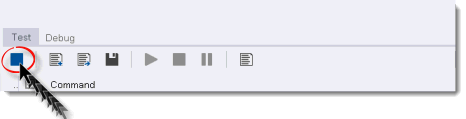
At this point, a progress bar is displayed as Silk Mobile analyzes the recorded data. When this analysis has been concluded, the test script is displayed in the script area.
Note: The script you have just recorded can be edited later on. For full details on how to edit scripts, see the Edit Test Commands and Edit Test Objects sections in this guide.
Playing Back the Test Script
To play back the recorded script:
-
Click the Play button.
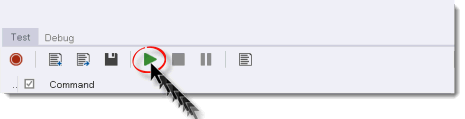
As the script is played, the Log portion of the Silk Mobile window displays execution. Any steps which were not successfully executed will be marked in red.
Generating an Execution
To generate a report for the execution of a script:
Step 1: Before playing back the script, go to the Help menu and activate the Launch Support option by selecting its check box.
Step 2: Click the Play button.
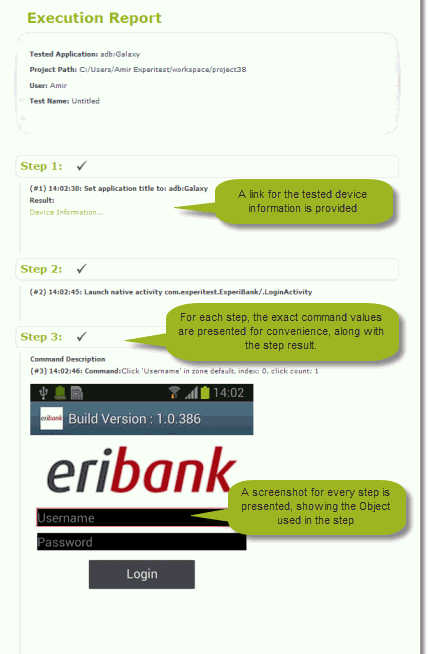
Once the test has been executed, an Execution Report is displayed as an HTML file in your browser. This report indicates step whether it was executed successfully or not, including a screen shot of the device during command execution.
Externally Running Test Scripts
The test scripts you create with Silk Mobile can be run on UFT
Step 1: Click the "Code" tab.
Step 2: From the drop down menu, select the type of code you want to run.
Step 3: Select the displayed code and copy it to your clipboard.
Step 4: Paste the code into the desired framework and run it from the framework.
For full details, refer to Export Code.